HOME PAGE | DOWNLOAD | TUTORIALS | XtraReports
Devexpress
Showing posts with label Editing. Show all posts

Saturday, July 14, 2012

XtraGrid - Applying Filters

In this lesson, you will learn how to build and apply complex filter criteria using the “Filter Editor”. The XtraGrid provides the “Filter Editor” tool, which enables end-user to build complex filter criteria with an unlimited number of filter conditions combined by logical operators.
End-user can invoke the Filter Editor by using the “Edit Filter” button, which is displayed within the filter panel.
1.       The visibility of this panel is controlled by the “Show Filter Panel Mode” property.
2.       By default, the filter panel is shown when the filtering is applied to a view.
3.       Otherwise, it is hidden.
4.       I can set this property to “show always”, so that the filter panel can always be displayed at the bottom of the view.
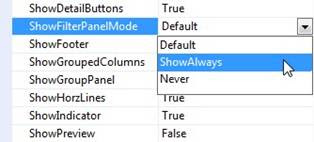
5.       The availability of the filter editor is controlled by the “Allow Filter Editor” option.
6.       By default, this property is set to true, thus enabling the end-users to use the “Filter Editor”.
7.       So, now I can run the application to demonstrate how to work with the “Filter Editor”.
8.       I invoke it.
9.       A new empty condition has already been added to the filter criteria.
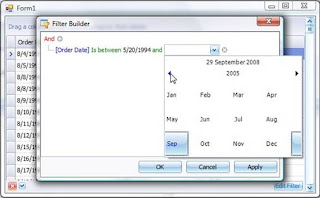
10.   I’m going to select orders made between the 20th of May 1994, and 10th of November 1994.
11.   First, I select the column for which the filter condition will be applied to. This is the “Order Date” column.
12.   In the operator drop-down, I select the “Is between” item.
13.   And finally, I can select the range of dates for the “Is between” operator.
14.   The editor used in these value boxes, by the way, is determined by the type of the editor which is assigned to the corresponding column.
15.   In this case, it’s a “Date/Time” editor, which drops down a calendar control, enabling the user to easily select dates.
16.   And I’m done!
17.   Now, I’m going to add a second condition, which selects the orders whose freight cost is more than $50.
18.   I apply this condition to the “Freight” column.
19.   I select the “Is greater than” operator, and then type in $50.
20.   The third condition I’m going to use, selects only those orders, where the shipping country is either USA, Brazil or Belgium.
21.   This condition is applied to the “Ship Country” column.
22.   I select the “Is any of” operator from the drop-down.
23.   Now, I need to add a list of the countries.
24.   I can start by selecting USA, and so I can add Brazil, and I can continue adding to the list now by adding Belgium.
25.   And I’m done!
26.   I apply this filter criteria to the view and close the filter editor.
27.   You can see that only those orders that match our criteria are displayed within the view.
28.   The filter criteria which is applied to the view is displayed within the filter panel at the bottom of the view.
Enhanced by Zemanta

XtraGrid - Embed Editors into Grid Cells

In this lesson, I’ll demonstrate how to assign the in-place editors supplied in the XtraEditors library to Grid Columns and Card fields.
1.       First, I’m going to assign editors to some card fields.
2.       To do this, I select the Card View, and in this case select the “Order Date” and the “Required Date” card fields.
3.       To select multiple card fields like this, I can use the shift key.
4.       Then, I’ll select the column edit property, and assign a “Date Edit” in-place editor.
5.       This editor enables date/time values to be edited using a drop-down calendar.
6.       The created in-place editor is represented by the repository item that stores the editor’s properties and event handlers.
7.       Using those settings, the repository item is capable of creating fully functional editors which are ready to be used to edit cell values.
8.       After the “Date Edit” repository item has been created, I can access its settings. For example, I can specify a range of available values.
9.       Now, I’ll select the “Advanced Banded Grid View” to assign in-place editor to the county and address columns.
10.   First, I select the “Country” column, modify the “ColumnEdit” property, and assign the “Combo Box Edit” to it.
11.   After the Combo Box Editor has been created, I can access its items collection and populate it with the countries that will be displayed within the drop-down.
12.   When assigning in-place editors to columns and card fields, the corresponding repository items are automatically added to the Grid Control’s internal repository.
13.   So, it’s also possible to create and customize the repository items and then assign them to grid columns.
14.   This is what I’m going to demonstrate.
15.   I run the designer, and switch to the “In-place Editor Repository” page.
16.   The repository items that I created before I listed here.
17.   Now, I’ll add a new repository item.
18.   Let it be the “Memo E X Edit”.
19.   Then, I switch to the columns page, and assign the “Memo E X Edit” I just created to the Address column.
20.   And I’m done.
21.   I close the designer, and run the project to see the result.
22.   I can click the cells, and the view automatically creates editors to enable me to edit cell values.
23.   The editors are created based on the settings of the corresponding repository items.

Enhanced by Zemanta